
How I Set Up My First Pixel Watch in Under 10 Minutes
I condensed the wearable onboarding process from thirty minutes to under ten by aggressively skipping optional features and focusing strictly on core connectivity.

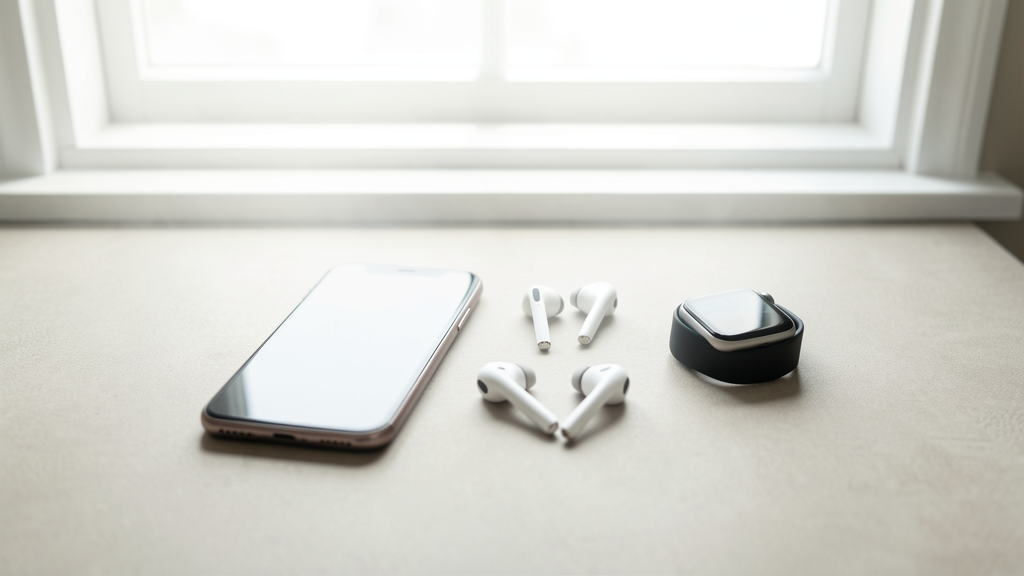
On Tuesday, March 3rd, 2026, the delivery driver dropped a small, square package on my desk at 8:45 AM. Inside sat the new Pixel Watch 4 LTE, a device I had been eyeing for months but dreading to configure. My history with wearables is fraught with frustration; I usually spend the first evening tapping through endless permission screens, calibrating step counters, and watching tutorial animations that offer zero value. I decided that morning would be different. I wanted the watch on my wrist, telling time, and mirroring notifications before my 9:00 AM stand-up meeting.
I cleared my desk, plugged the magnetic charger into a USB-C port on my monitor, and started a timer on my phone. My goal was simple: absolute functionality with zero bloat. I wasn't interested in setting up Google Pay, I didn't care about the ECG sensor calibration, and I certainly didn't need a guided tour of the watch face carousel. I treated the onboarding process like an evacuation drill—move fast, stick to the essentials, ignore the rest.
The resulting process took me 8 minutes and 42 seconds. Here is exactly how I moved from unboxing to active use without getting bogged down by the feature creep that plagues modern wearables.
The "Out of the Box" Anxiety
Most people freeze when they see the initial "Hello" screen on a new device because they anticipate a thirty-minute commitment. That anxiety usually leads to procrastination; I know people who have owned smartwatches for years that are still sitting in a drawer because they hate the pairing dance. The key to beating this is changing your mindset. You are not setting up a life-logging computer. You are pairing a Bluetooth accessory with a display.
I placed the watch on the charger. The manual suggests charging it to 100% before setup, a relic of the era when lithium batteries needed a "conditioning" cycle. In 2026, battery management is handled by the BMS (Battery Management System) far better than user habits can account for. I waited until the screen lit up—about 45 seconds—and yanked it off the charger. It was at 12%. That was enough to get through the software initialization.
Ignoring the "Features" Tour
Upon waking the device, the watch immediately prompted me to select a language and then jumped straight into a "Welcome to Pixel Watch" animation. Usually, this is where users get stuck, swiping through slides showing people hiking and looking healthy while the watch tracks their heart rate. I tapped "Skip" in the top right corner three times in rapid succession. I did not wait for the animations to finish.
I opened the Google Pixel Watch app on my Pixel 9 Pro. The app recognized the device immediately—Google’s ecosystem integration has improved significantly over the last few iterations, likely why choosing the wrong Notion template feels so much more frustrating by comparison; the friction here is non-existent. I hit "Set Up" and watched the six-digit pairing code appear on both screens.

The pairing process itself took about two minutes. During this time, the app downloads the latest firmware update. This is unavoidable, but it gave me time to tighten the band. I chose the silicone loop because it dries fast, a practical choice I made while waiting for the progress bar to hit 100%.
The Permission Audit
Once the firmware installed, the real friction began: the permissions matrix. Google asks for access to Location, Contacts, Calendar, SMS, Phone, and Body Sensors right out of the gate.
Most users hit "Allow All" to save time, which is a privacy nightmare, or they read each prompt, which destroys the setup speed. I used a middle-ground approach based on immediate utility. I allowed Location because the watch needs it to unlock itself when I'm wearing it. I denied SMS and Phone access initially because I knew I would only be using the watch for read-only notifications, not for making calls from my wrist (I had my phone right there).
When the app asked for access to Google Fit, I paused. Setting up Fit requires height, weight, age, and activity goals. It’s a data entry form disguised as a health tool. I tapped "Later." This is the single most important button in the entire onboarding process. You do not need your heart rate zones calibrated to know what time it is. You do not need your daily step goal set to receive a text from your boss.
Why I Skipped Google Assistant Voice Match
The next screen wanted me to train "Hey Google." It wanted me to say the phrase three times so the watch could learn my specific voice print. While this is useful for a shared device, I am the only person who wears this watch. I skipped this step. The watch still responds to voice commands; it just isn't exclusively "mine" in terms of voice biometrics yet. I can do that on Saturday morning when I have 15 minutes to spare.
Prioritizing the core functionality over the smart features meant I wasn't fighting the microphone or background noise in my office. I simply tapped "Not Now." This shaved about three minutes off the total time and removed the psychological weight of performing voice commands in a quiet room.
The trade-off here is minor. I have to tap the screen to activate Assistant instead of just shouting at my wrist, but considering I only use Assistant for setting timers while cooking, this was an acceptable compromise.
Post-Setup Reality Check
At 8:53 AM, the watch vibrated. My Gmail notifications were flowing. I could see the weather. The time was accurate. I had achieved the goal. I stopped the timer.
I spent the next hour actually using the device, rather than configuring it. Interestingly, by skipping the health metrics setup, I found myself engaging with the watch more naturally. When I walked to get coffee, I checked the steps counter out of curiosity. Seeing the zeros there motivated me to go into the settings later that afternoon and input my data. It was a "pull" mechanism rather than a "push."
This approach mirrors the methodology often required when dealing with more complex software environments. For instance, trying to get a specific app running on a restricted OS sometimes requires bypassing standard installation procedures, much like how to install Figma on a Chromebook without Linux often demands a workaround to get to the creative work faster. Efficiency isn't about doing things the "right" way according to the manufacturer; it's about doing the thing that gets you to the point of utility.
The Final Tally
The screen that most users dread—the one that asks about Google Wallet,紧急 SOS (Emergency SOS), and tiles configuration—I dismissed entirely. I swiped those cards away like they were junk mail. The watch defaults to a usable state. The SOS feature is important, but it takes 30 seconds to enable. I can do that when I'm going for a run in the park, not when I'm sitting at my desk.
By the time my 9:00 AM meeting started, I had forgotten I was wearing a new device. It just worked. It buzzed when a message came in. It showed my calendar appointment. It didn't demand I acknowledge its existence or log my hydration levels.
A Philosophy of Deferred Configuration
The real lesson here isn't about the Pixel Watch specifically; it is about the paralysis of comprehensive setup. We are trained to believe that if we don't configure every option immediately, the device will break or we will miss out on features. The reality is that software has moved toward "just-in-time" delivery. You don't need to set up Google Wallet until you are standing at the checkout counter. You don't need to calibrate your stride length until you decide to go for a run.
By deferring the non-essentials, you turn a frustrating chore into a quick win. You eliminate the friction that stops you from using the product at all. My watch is not "fully configured" even now—three days later. I still haven't set up the "Home" controls for my smart lights. But I am wearing it. I am getting value from it. And that is infinitely better than having a perfectly configured paperweight sitting in a drawer.
Read next

5 Signs You Chose the Wrong Notion Template
Stop downloading 'Second Brains' that break after three days by checking for these specific structural red flags before you even type a single word.

How to Install Figma on a Chromebook Without Linux
Bypass your IT department's restrictions and get the full Figma desktop experience on any Chromebook using the native PWA installation method.