
How to Force YouTube to Respect Your System’s Dark Mode Settings
Stop manually toggling YouTube's theme every time the sun goes down by linking the app directly to your OS settings.

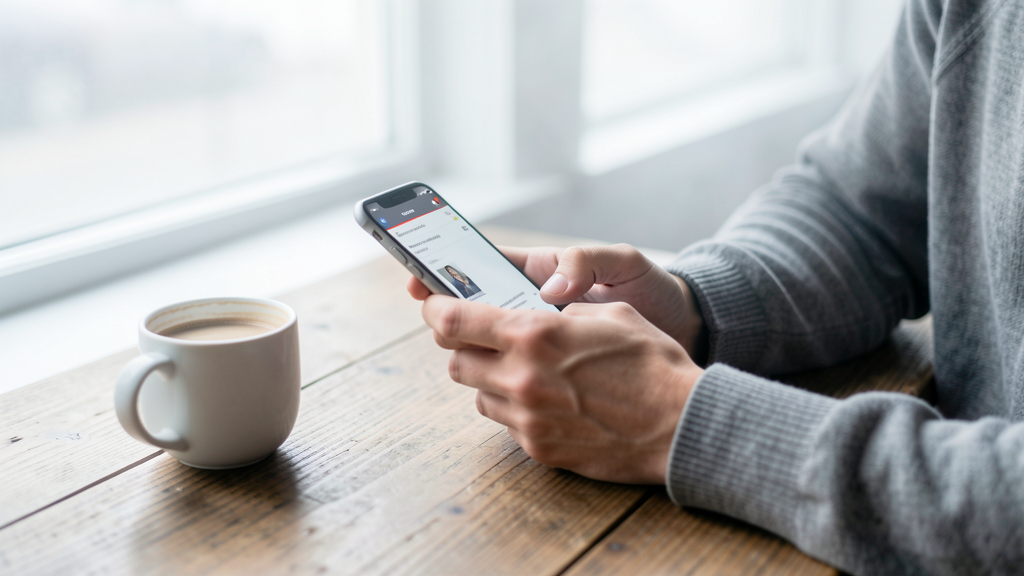
We have all been there. It is 11:00 PM. You have just settled into bed, adjusted your nightstand lamp to a low, warm glow, and switched your phone into system-wide Dark Mode to protect your eyes. You tap the YouTube icon to catch up on subscriptions, and suddenly—bam. A blinding, piercing white interface assaults your retinas. It is a jarring experience that ruins the relaxation vibe instantly.
The issue usually stems from a disconnect between the operating system and the application. YouTube, by default, often maintains its own independent theme setting. If you toggled it to "Light" three months ago during a sunny afternoon at the park, it will stubbornly stay there, ignoring your phone's current preference entirely until you intervene manually.
The goal here is not just to turn the background black. The objective is to create a seamless environment where YouTube respects your phone's ambient status. If your phone switches to dark mode at sunset, YouTube should follow suit without you opening a single menu. This synchronization is crucial for maintaining a comfortable viewing experience and, if you are using an OLED display, preserving battery life.
Why Independent Toggles Break Your Workflow
YouTube treats its theme settings as a "sticky" preference. Historically, this made sense. Early iterations of Android had poor dark mode support, and iOS did not have a system-wide toggle until iOS 13. Consequently, apps developed their own internal switches to ensure users could choose their preference regardless of OS limitations.
In 2026, however, this behavior creates friction. Most users now automate their display settings based on time of day or location. When an app like YouTube holds onto an outdated setting, it creates a disjointed user experience. You might switch from checking your email in dark mode to YouTube in light mode, forcing your pupils to rapidly dilate and contract. This visual flickering is more than just annoying; it contributes to digital eye strain.
Furthermore, managing separate settings for every app is mentally taxing. If you decide to switch your phone to Light Mode for a few minutes to read a PDF outside, you then have to remember to switch YouTube back to Dark Mode when you return indoors. It is an unnecessary cognitive load. By forcing YouTube to obey the system, you regain control. You only have to manage the theme in one place: your phone's main settings menu.
If you are someone who frequently tweaks your interface for readability or efficiency, such as choosing between views in Outlook Compact vs. Single View: Which Layout Speeds Up Email Processing?, you likely value a consistent UI. Having YouTube rebel against your system-wide aesthetic choices breaks that flow.
The Android Method: Restoring System Autonomy
On Android, YouTube gives you a specific, albeit slightly hidden, option to hand over control to the operating system. This process is identical whether you are using a Pixel 9, a Samsung Galaxy S26, or a foldable device.
- Launch the YouTube app from your home screen or app drawer.
- Tap your Profile Picture located in the top-right corner of the interface. It is usually the first thing you see in the top header.
- Select Settings from the menu that slides up from the bottom. It is typically represented by a gear icon.
- Tap on General. This is the first option in the list, containing the most fundamental app behaviors.
- Locate and tap on Appearance.
- You will see three options: "Light," "Dark," and "Use device theme." Tap Use device theme.
Once you select "Use device theme," the app will instantly refresh. If your phone is currently in Dark Mode, YouTube will turn black immediately. If your phone is in Light Mode, it will revert to white. The beauty of this setting lies in its dynamism. You can now go to your phone's main Quick Settings panel, toggle Dark Mode off and on, and watch YouTube transition in real-time to match it.
A common point of confusion here occurs with launchers. Sometimes users apply a "Dark Mode" purely to their home screen launcher without actually enabling the system-wide OS setting. If YouTube remains white after following these steps, verify that your actual system settings (under Display > Dark Mode on most Android skins) are enabled, not just your wallpaper or theme pack.
Configuring iOS to Sync With Your iPhone
Apple handles app integrations tightly, but YouTube still requires permission to look at your system settings. On iOS, the wording differs slightly from Android, but the logic remains consistent.
- Open the YouTube app on your iPhone.
- Tap your Profile Icon at the top right of the screen.
- Scroll down and select Settings. It is at the very bottom of the list, just above the "Help & Feedback" button.
- Inside the Settings menu, tap on General.
- Find the Appearance setting. On iOS, this is often just a toggle switch or a selector saying "Light," "Dark," or "Same as device."
- Select Same as device.
If you are running iOS 20 (released earlier this year), Apple has introduced "Smart Invert" and "Color Filters" that can sometimes override app-specific settings. Ensure you do not have "Smart Invert" turned on in your Accessibility settings, as this can create a weird pseudo-dark mode that messes up photos and video thumbnails on YouTube. For the best experience, stick to the standard "Dark Mode" appearance setting in your iOS Display & Brightness menu.
One specific trade-off on iOS involves battery consumption. While OLED iPhones have been around for years, the YouTube app still defaults to a slightly gray off-black in dark mode rather than pure #000000 black. If you are wondering if customization choices like this impact your battery longevity, the answer is generally yes—pixels displaying gray consume more power than those turned off completely. However, enabling system sync usually pushes the app to respect the OS-level pitch-black settings better than the manual "Dark" toggle within the app does.
Dealing With "Sticky" Settings and Cache Issues
There are instances where you perform the steps above, reboot your phone, and YouTube still refuses to switch. The app gets "stuck" in a state where it ignores the system flag. This is usually a cache corruption issue, common in apps that stream high-bandwidth video content constantly.
If the "Use device theme" option appears selected but the background color remains unchanged, you need to clear the cache.
- Go to your phone's Settings (the OS settings, not YouTube's).
- Navigate to Apps or Applications.
- Find and tap on YouTube.
- Tap on Storage.
- Hit Clear Cache.
Do not worry, this will not log you out or delete your downloaded videos. It simply dumps the temporary files the app uses to load interface elements quickly. Once cleared, force stop the app and reopen it. This forces YouTube to rebuild its UI assets from scratch, which usually re-establishes the connection to the system theme flag.
If clearing the cache fails, try force-stopping the app immediately after switching your phone's system theme. Sometimes the app needs a "kick" to poll the OS for the current state. Switch your phone to Light Mode, go to your recent apps menu, swipe YouTube away, and relaunch it. Then switch to Dark Mode, swipe away, and relaunch. This manual reset often fixes synchronization bugs.
The Psychological Benefit of a Unified Theme
Beyond the technical steps and battery savings, there is a psychological argument to be made for system-wide obedience. When your digital environment shifts predictably, it reinforces the time of day. Dark mode signals "relaxation" and "rest" to your brain. When one app violates this by blasting you with light, it subconsciously signals alertness, disrupting your wind-down routine.
This is similar to how notification management works. You might silence your phone for the night, but if one specific app bypasses the Do Not Disturb rule—much like how certain notification settings can ruin your focus—the effect is ruined. Consistency is key to a healthy relationship with your device.
By linking YouTube to your system settings, you are removing a decision point. You no longer have to think, "Is the app set to dark? Did I change it last week?" It just works. This reduction in friction is the hallmark of good app configuration.
Ultimately, YouTube should adapt to you, not the other way around. While the independent toggle gives power users granular control, the average user in 2026 expects ecosystem cohesion. Taking two minutes to dive into the Appearance menu saves you hundreds of manual toggles over the lifespan of your phone. It is a small configuration change with a significant daily payoff.
Read next
Does Customizing Your Home Screen Drain Battery Faster? The 2026 Reality
Dissecting the actual impact of widgets, dynamic themes, and custom launchers on your iPhone or Android battery life to see if personalization costs you power.
3 Slack Notification Settings You Must Change to Stop Burnout
Switch off the chaos by configuring three specific notification triggers that constantly interrupt your deep work sessions.